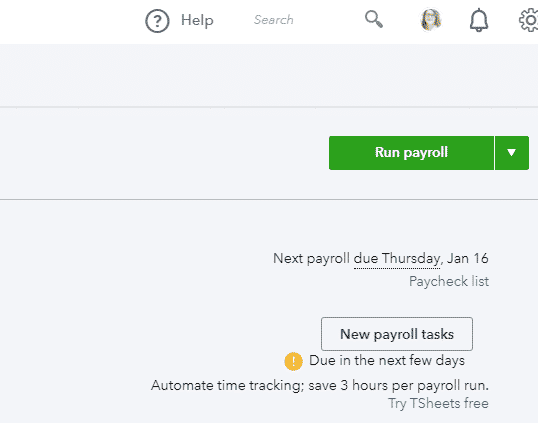
Click on New payroll tasks button to complete your new to do.
We’ve been fielding some questions about updating unemployment rates in QuickBooks Online when you have Full-Service Payroll. Let’s talk about how to update your unemployment rate in QuickBooks Online Full Service Payroll.
Each year employers receive their new unemployment tax rate assessments. Typically arriving in December or early January, they provide your new experience rate for Unemployment contributions to be made to the state. For Online Full Service Payroll clients, the process to update your rate is simple. You can reach out to support via the ? mark in the top right of your screen, and let them know you are ready to submit your updated unemployment tax rate assessment. They will create a “To Do,” which will show in your Employees section (Workers on the left side -> Employees tab at top).

SUI Update will appear here. Click on the carat to the right in order to upload your letter.
Once you complete this simple, but very important, step, your unemployment tax rate is updated, and you are good to go until next time. Here is hoping yours decreased this year!
-Katie
If you like this article on How to Update Your Unemployment Rate in QuickBooks, and would like to find more info on how we can help you, please contact us, book a free QuickBooks consultation, or check out our business scaling services to see how to become a client.
Additional Resources:
Avoid IRS Penalties, Estimated Taxes 2025: https://youtu.be/X-yXnqMJ63Q
How to Run Payroll in QuickBooks Online | Complete QuickBooks Payroll Demo:https://youtu.be/eNe8eTmZX_U
Mastering QuickBooks Enterprise Payroll Wizard: https://youtu.be/aDtHD5LEy9Q
Related QuickBooks Services & Offerings from Certum Solutions
Learn QuickBooks! QuickBooks Training Services ➔
Intuit Enterprise Suite Migration Steps ➔
QuickBooks Enterprise Implementation & Consulting ➔
QuickBooks Online Implementation & Support ➔