If you’re managing inventory in QuickBooks Enterprise, calculating landed costs is essential for accurate pricing and profit tracking. Landed costs represent the true cost of each product; including purchase price, shipping, tariffs, and handling fees. In this guide, we’ll walk through exactly how to calculate landed costs in QuickBooks Enterprise, step by step, so you can maintain precise COGS and make smarter financial decisions.
In a prior post, we set up our QuickBooks Enterprise file to calculate Landed Cost or the cost to get an inventory item to a recipient’s door. Landed cost is important, because it helps you understand the total cost of your items that are shipped, instead of only calculating the cost of creating the item. As any manufacturer or distributor knows, knowing your COGS (Cost of Goods Sold) is a critical need for business planning and pricing. If you need a refresher on “How to turn on Landed Cost”, please see the previous article then carry on with our post.
At this time, we have already set the file up for Landed Cost and created a Shipping Cost account. It is mapped to our Asset account, and we now need to use it. You can create multiple Landed Cost accounts, such as for tariffs, etc, but for the purpose of this post we will keep it simple.
Book a FREE 30-minute QuickBooks Consultation
Step-by-Step: How to Calculate Landed Costs
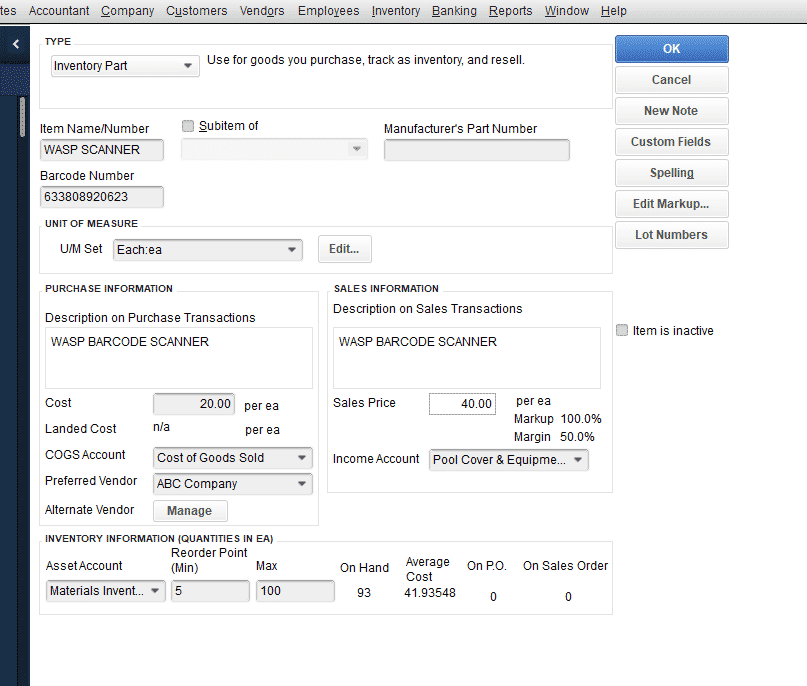
Step 1
First, I made sure my item was set up. For this post, I used my WASP BARCODE SCANNER item (literally, scanning the box of my Wasp Barcode Scanner). Sales price is definitely wrong, but we will fix that soon! We wouldn’t be in business long if our average cost was $41.94 and our sales price was $40.00. The markup is calculating off of my original entry of $20 cost per year with a 100% markup. Also, I know it isn’t a pool cover.
(I need to start a THEMED sample company).

Step 2
After I make sure my item is set up, I’m going to check on the original bill for the items.
The cost here is $50 each. A quantity of 75 units were purchased, for a total amount of $3750.00.
We then add the shipping, where our shipping company for a total bill of $500.00.
We put this to our Landed Cost shipping item. We previously (in our last post) linked this account to our Landed Costs module. It will go to an Asset account, until the whole kit and caboodle is cleared to COGS.
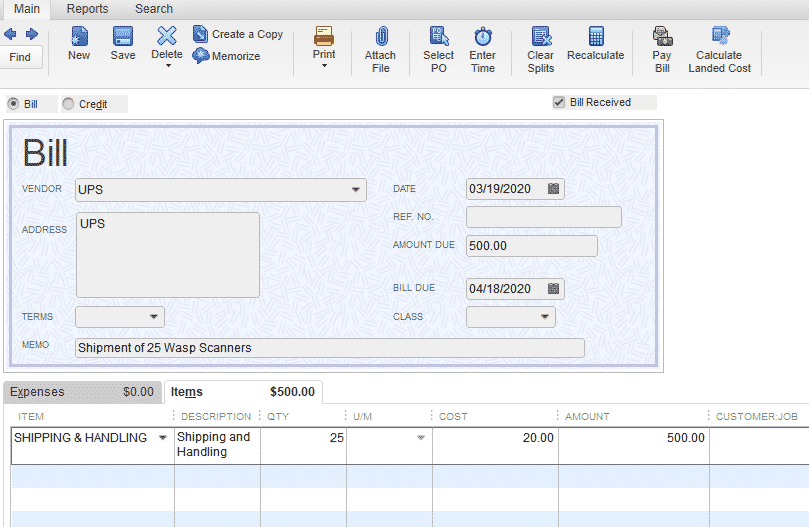
Step 3
Notice that this bill is not yet linked to our original cost. How do we loop these items back to our original purchase, so we know a true cost of the item? Landed costs. We may not have them all shipped, but we can still adjust, as you will see soon.
So, to summarize, at this time we have two bills linked to the inventory item Wasp Scanner. We want to connect them in order to calculate the landed costs for this item.
Please note that you cannot do this from the shipping and handling bill. You have to go back to the original bill for the wasp scanners, or it will give you an error.
If you click on the “Calculate Landed Cost” button in the ribbon, it will take you to a neat screen where you can proceed with calculations.
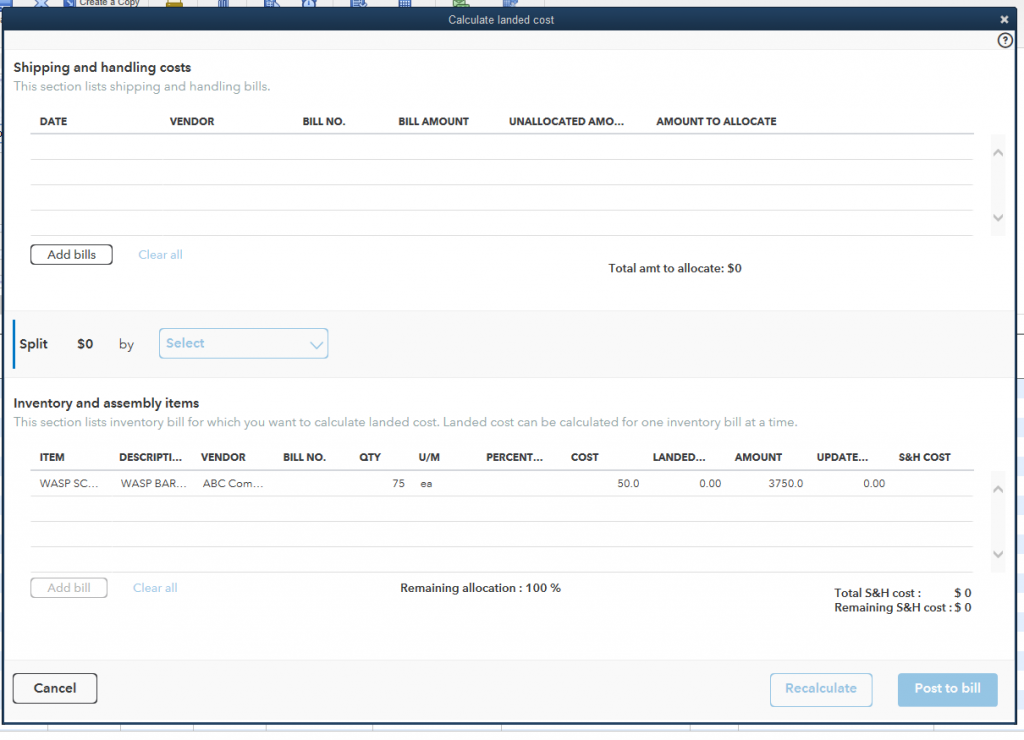
Step 4
Once you click the button, it brings up a neat modern interface where we can move on to next steps. This is where we will link the bills together. Let’s click “add bills.” If you do not, they won’t show up. You may grab some other bills as well. You need to know which ones you are calculating before moving forward.
Here we choose the UPS bill we just entered.
I selected the UPS bill, so now it will show up in our worksheet area.
How to Link Bills and Allocate Shipping Charges
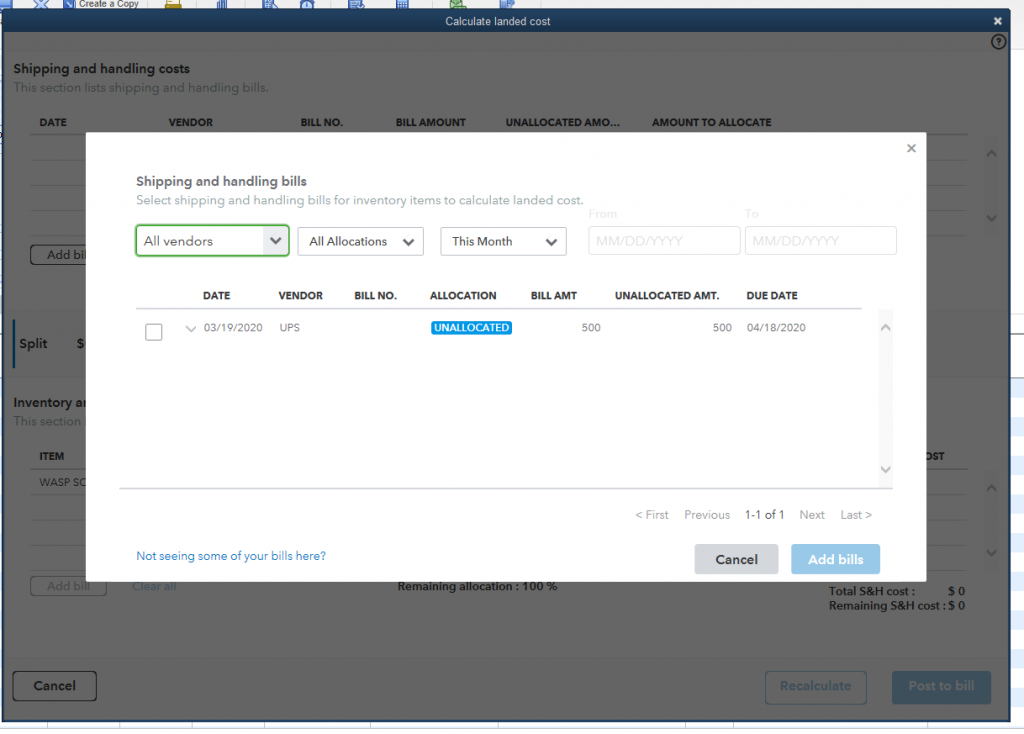
Step 5
Once you click the button, it brings up a neat modern interface where we can move on to next steps. This is where we will link the bills together. Let’s click “add bills.” If you do not, they won’t show up. You may grab some other bills as well. You need to know which ones you are calculating before moving forward.
Here we choose the UPS bill we just entered.
I selected the UPS bill, so now it will show up in our worksheet area.

Step 6
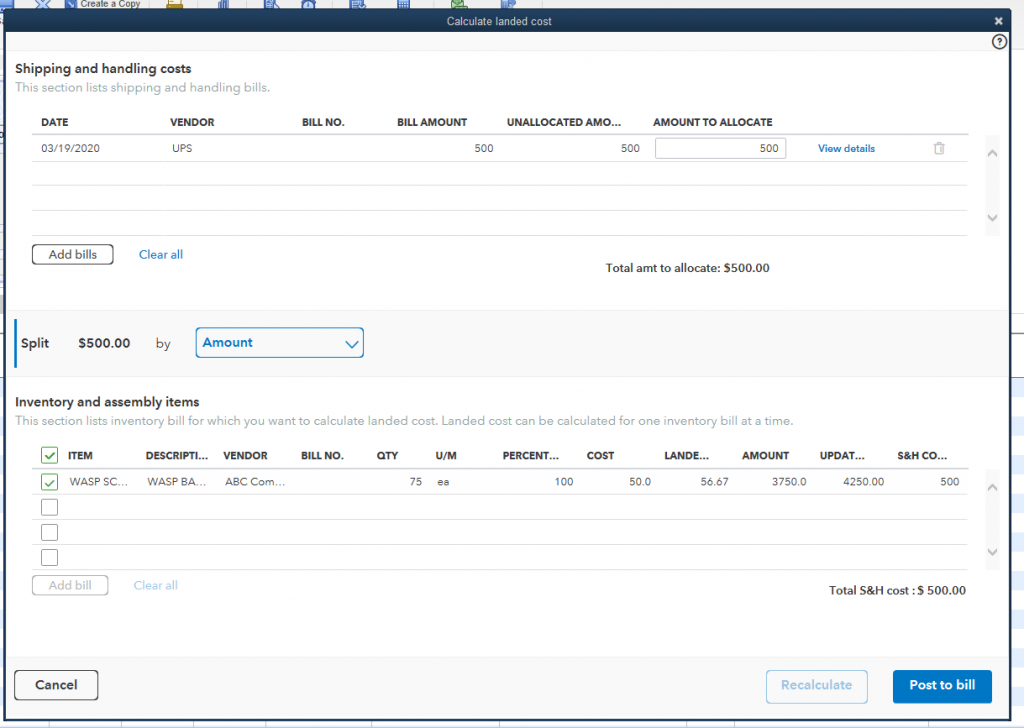
I love that you can personally choose how much of the bill to allocate. If I had multiple items shipped at once, this would be something I would need. For today’s KISS exercise, we will ask it to allocate the entire amount.
I ask to split by amount, but this is mainly so the amounts will link. Until you select a method, the screen will not allow you to move forward.
Step 7
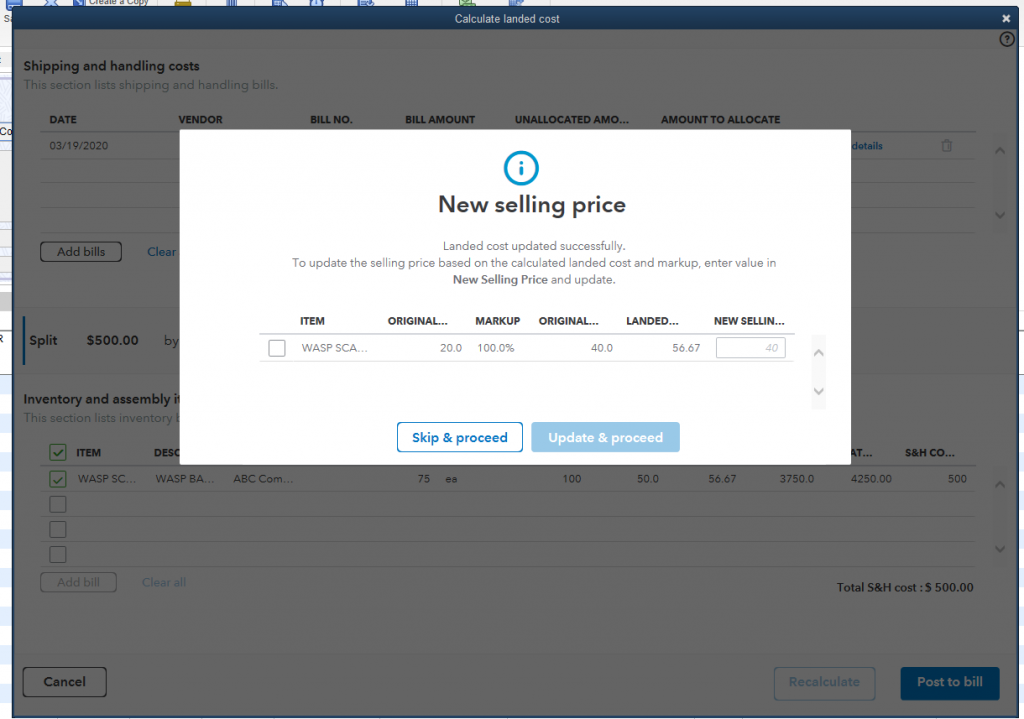
I now click “Post to bill.” I am now advised that my landed cost has been updated, but it has also highlighted the fact that my actual item cost needs to be changed if I want to match my markup.
Adjusting Your Inventory Cost and Markup
Step 8
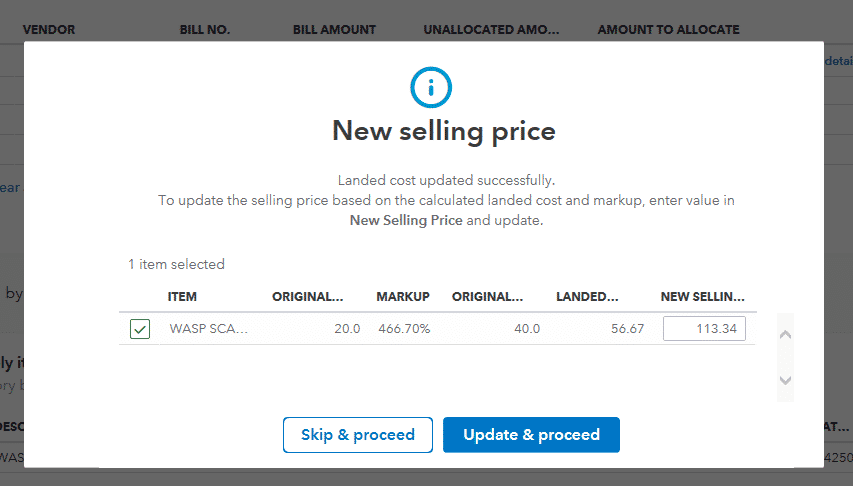
You will want to calculate based on the new markup.
Step 9
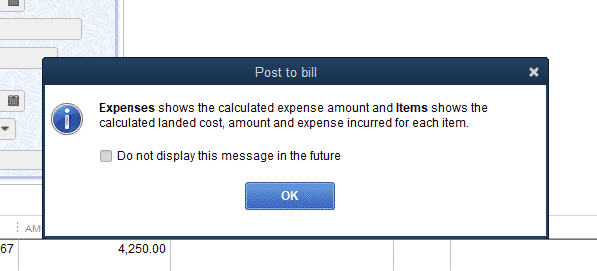
I am then advised of how the system has updated my bill.
Final Check: Reviewing Your Updated Landed Cost
Step 10
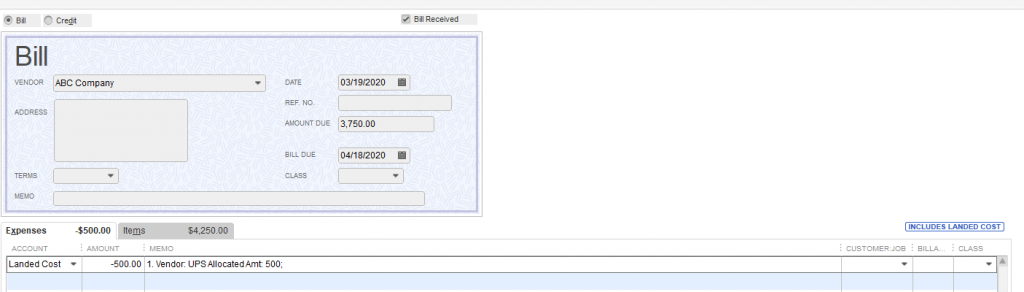
While the original bill amount is the same, the item amount has been adjusted for the landed cost, and the expense tab has been credited. It is a lot like a macro in Excel, running the procedure for us with a few clicks.
Step 11
You have successfully calculated your landed costs!
Get Expert Help with Landed Cost Setup
Ready to simplify your landed cost tracking? Our experts can help you set up Landed Costs, automate freight and tariff allocations, and integrate QuickBooks Enterprise with your inventory or ERP system for complete visibility.
Book a FREE 30-minute QuickBooks Consultation or Contact Us to get personalized guidance from a certified QuickBooks expert.
Links & Resources:
Free QuickBooks Enterprise Tutorials Related Article: https://www.certumsolutions.com/library/enterprise-landed-cost-feature
Learn More About QuickBooks Online
Learn More About QuickBooks Enterprise
Learn More About our QuickBooks Training Services
Learn More About Certum Solutions
Free QuickBooks Enterprise Tutorials
FAQ
Q1: What is landed cost in QuickBooks Enterprise?
Landed cost is the total cost of a product once it arrives at your warehouse or customer’s location— including purchase price, shipping, tariffs, duties, and other fees.
Q2: Why is landed cost important for manufacturers and distributors?
Accurate landed costs help businesses understand true margins, set profitable pricing, and maintain accurate COGS reporting.
Q3: Can I calculate landed costs automatically in QuickBooks Enterprise?
Yes. QuickBooks Enterprise has a built-in Landed Cost tool that lets you link bills, allocate shipping or tariff expenses, and automatically update inventory values.
About the Author:
Katherine Bunschoten is the CEO of Certum Solutions, a certified QuickBooks Elite ProAdvisor firm specializing in accounting automation, ERP implementation, and inventory management. With over a decade of experience helping businesses streamline financial systems, she brings deep expertise in cost tracking and system integration.